Quickstart
Overview
After installation, b4 runs as a service and is available through the web interface. This page walks through the path from first launch to a working bypass.
Open the web interface
Open in the browser:
http://<IP-address>:7000
Where <IP-address> is the address of the device where b4 is installed:
- If b4 is on the same computer:
http://localhost:7000 - If on a router:
http://192.168.1.1:7000(use the router's IP)
If HTTPS is enabled in b4 settings, use https:// instead of http://. The browser may show a certificate warning - that is expected with a self-signed certificate and can be accepted.
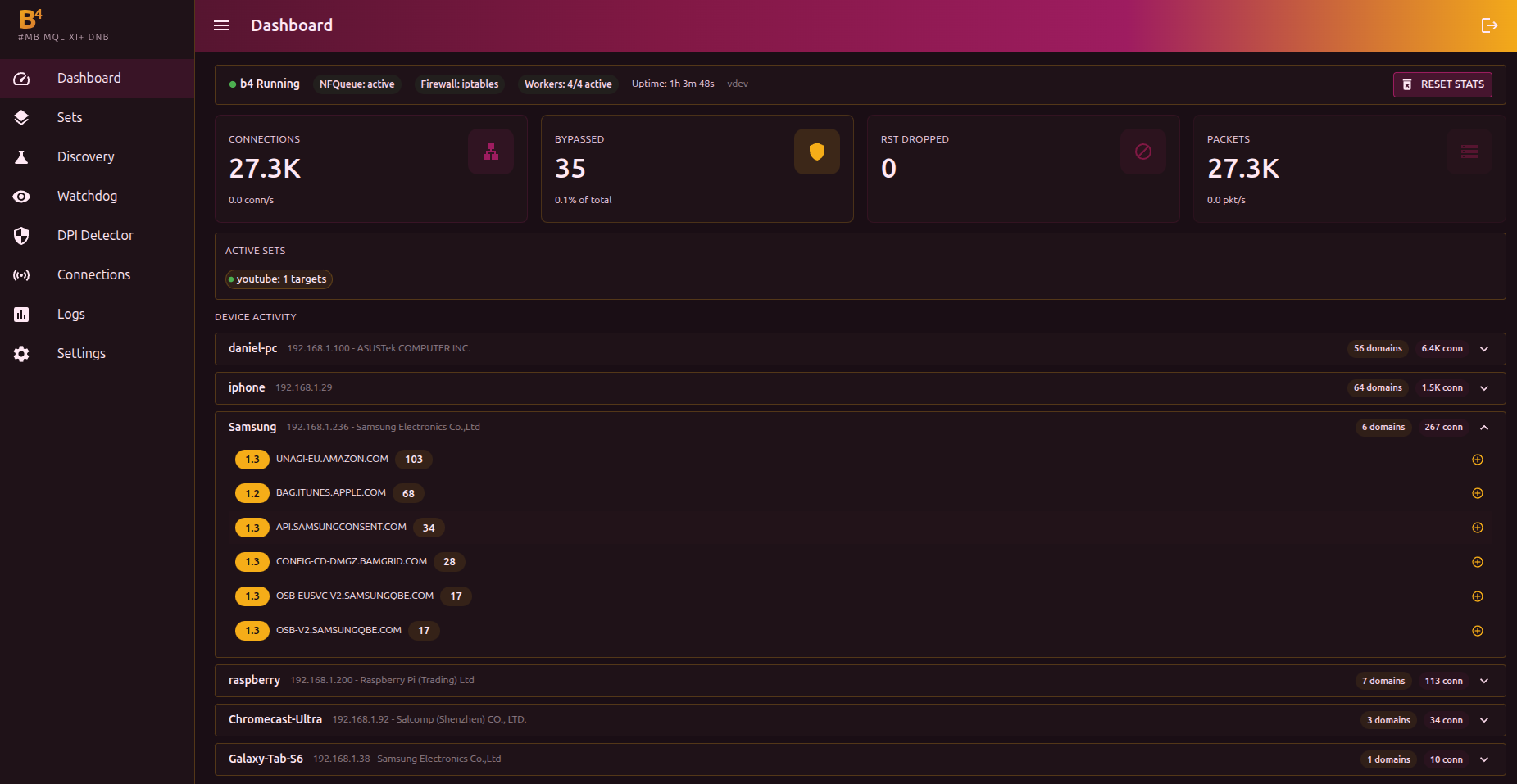
On first launch the dashboard will be empty - that is normal. Data appears after configuration.
Run discovery
b4 can automatically pick a working configuration for your provider. This is done in the Discovery section.
Step 1: Open Discovery
In the side menu click Discovery.
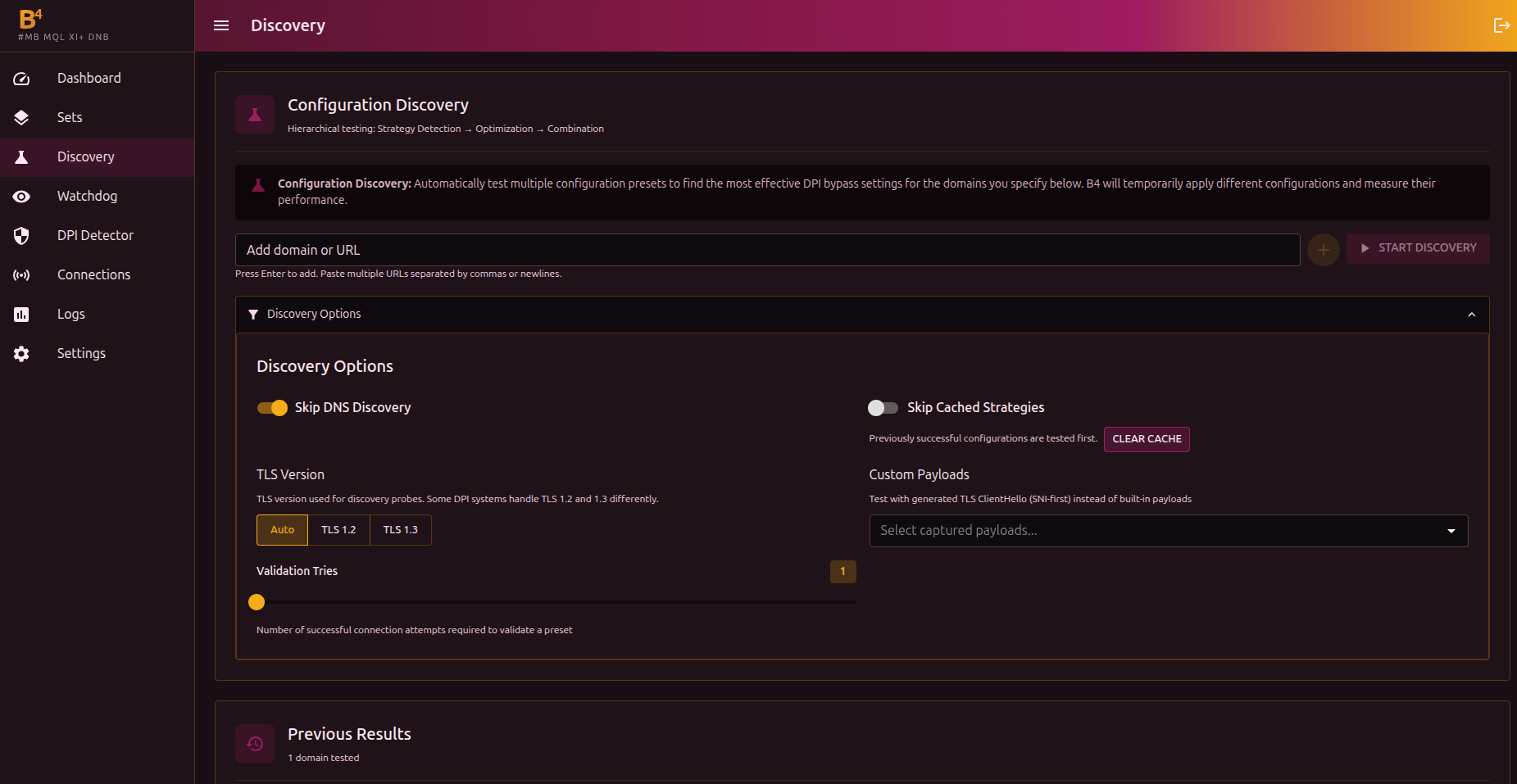
Step 2: Add domains
In the Add domain or URL field enter a blocked site address and press Enter. You can add several domains separated by commas.
Examples:
youtube.comgooglevideo.com
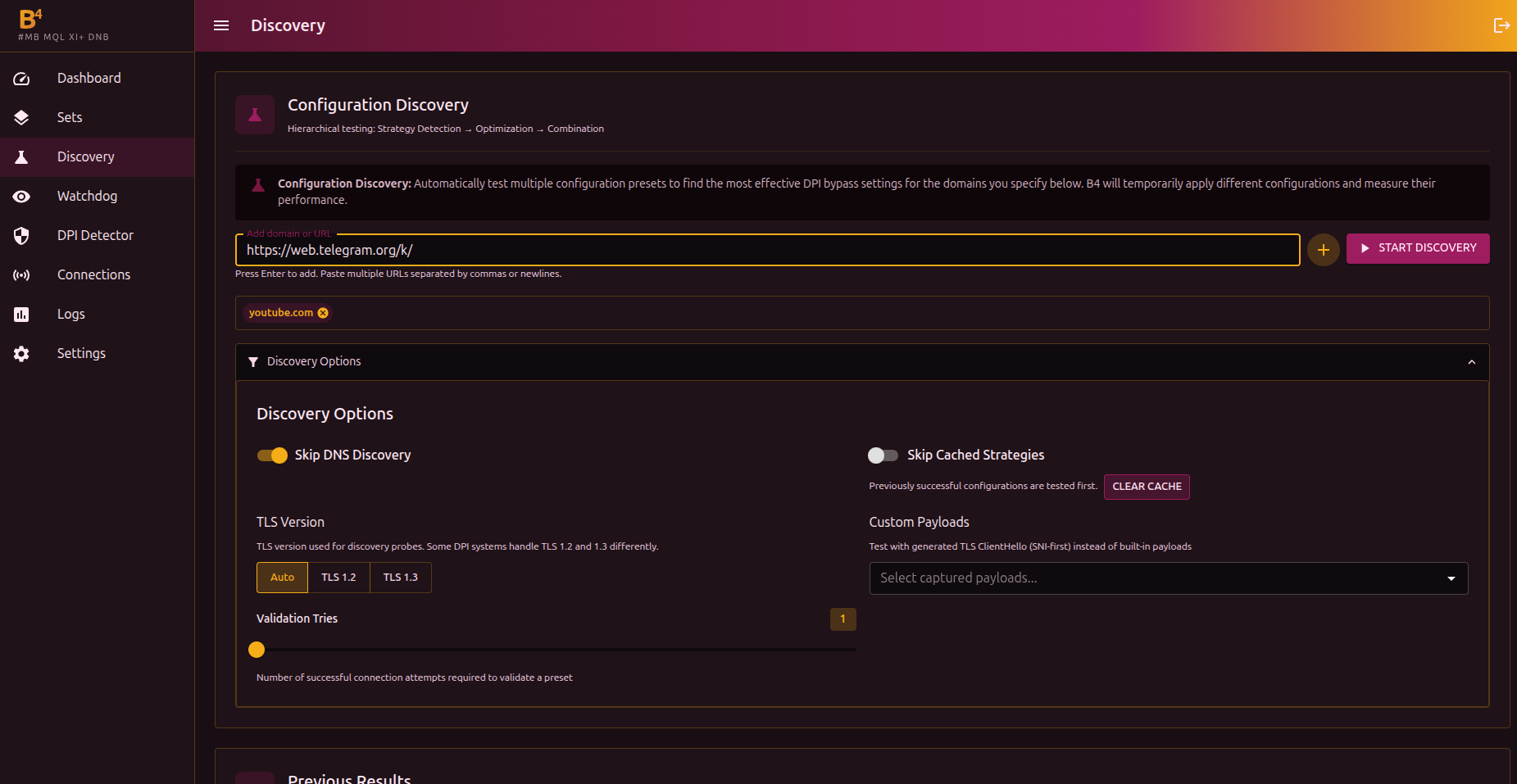
Step 3: Start the search
Click Start search.
b4 iterates through bypass strategies and tests them against the listed domains. The process goes through several phases:
- Basic test - check whether the site is actually blocked
- Strategy search - iterate through bypass methods
- Optimization - tune parameters
- Combination test - check combined strategies
- DNS check - check for DNS-based blocking
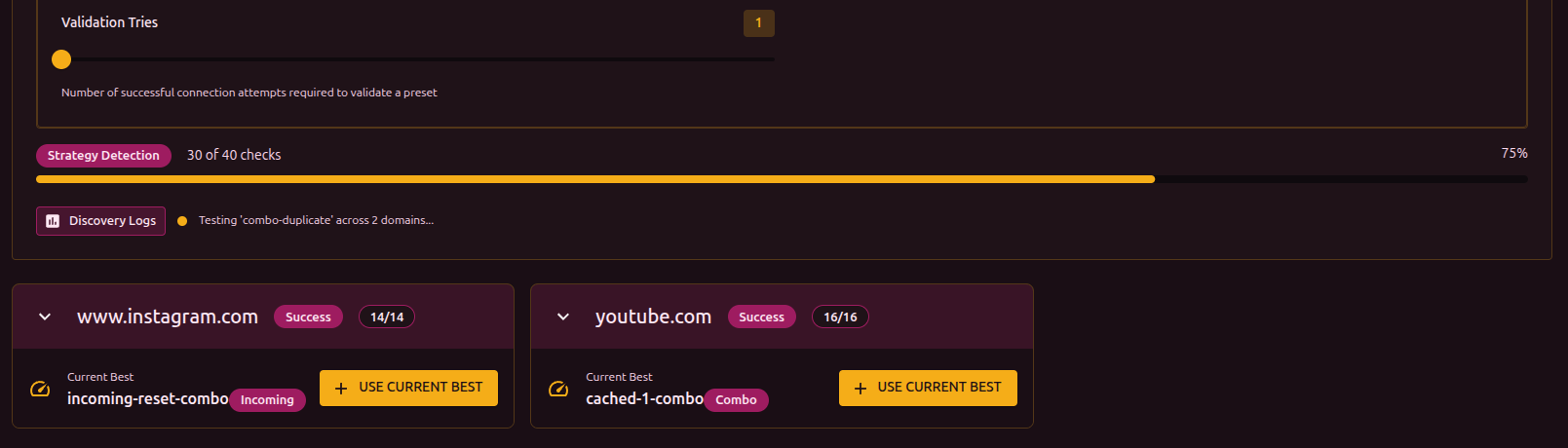
The search can take from 1 to 10 minutes depending on the provider.
If you are sure DNS works normally (for example, you use DoH or a third-party DNS server), enable Skip DNS search in Search parameters. This speeds up the process and removes false DNS-related results.
Step 4: Results
After the search finishes, each domain shows a result:
- Success - a working configuration was found
- Blocked - the site is blocked at the DNS or transport layer and needs additional settings
Apply the configuration
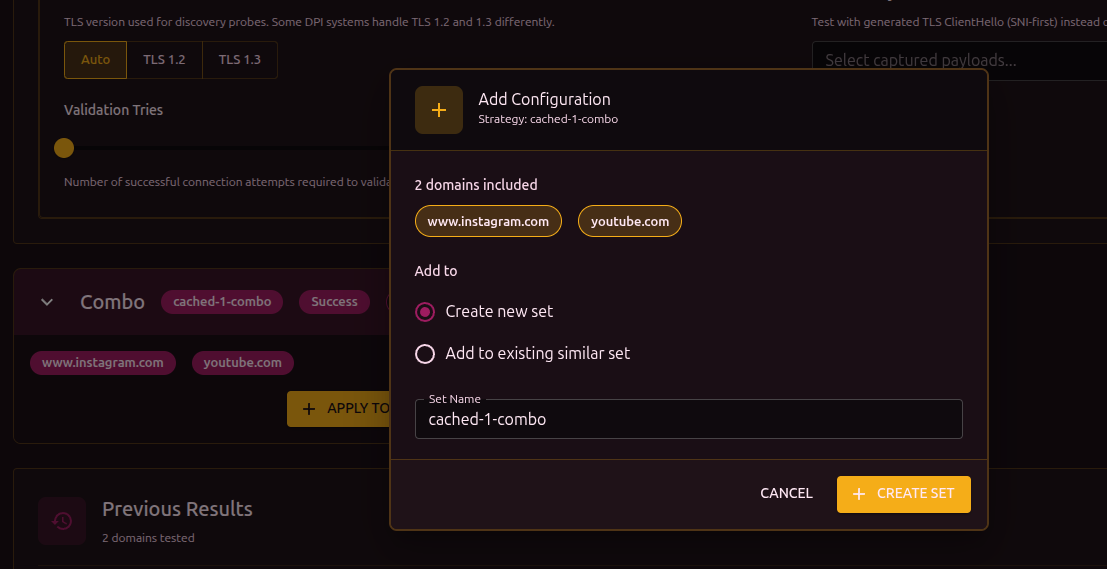
On a successful result card click Use this configuration.
In the dialog that opens:
- Choose Create a new set (or Add to an existing similar set if you already have configured sets)
- Enter the set name (or keep the suggested one)
- Click Create set
A set is a bundle of bypass settings tied to a list of domains or IP addresses. More on sets in the Sets section.
Verify it works
Through the browser
Open a site that is covered by the bypass. If everything works, the site loads.
Through the Connections section
In the side menu click Connections. This view shows all current TCP/UDP connections in real time.
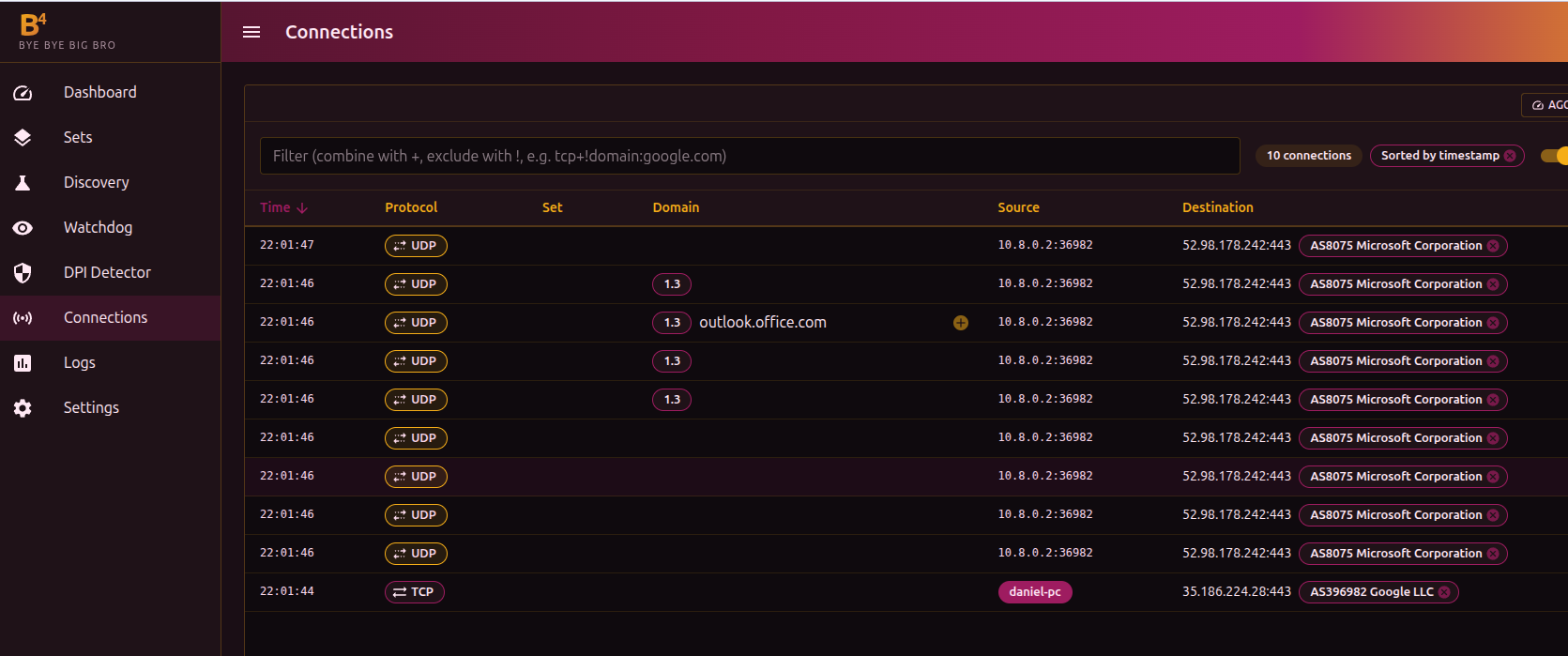
If the bypass is working, the Set column for connections to the configured domain shows the name of your set.
What's next
- Add more domains - through Discovery or manually in the set settings
- Configure bypass by category (GeoSite) - to avoid adding domains one by one
- See the Sets section for a detailed description of all features