
Geodata Files Manager
XRAYUI provides a built-in geodata management system that lets you work with two kinds of geodata:
- Community geodata — pre-built
geosite.datandgeoip.datdatabases maintained by the community, containing thousands of categorized domains and IP ranges. - Custom geodata — your own domain lists compiled into Xray's binary format and referenced in routing rules as
ext:xrayui:{tag}.
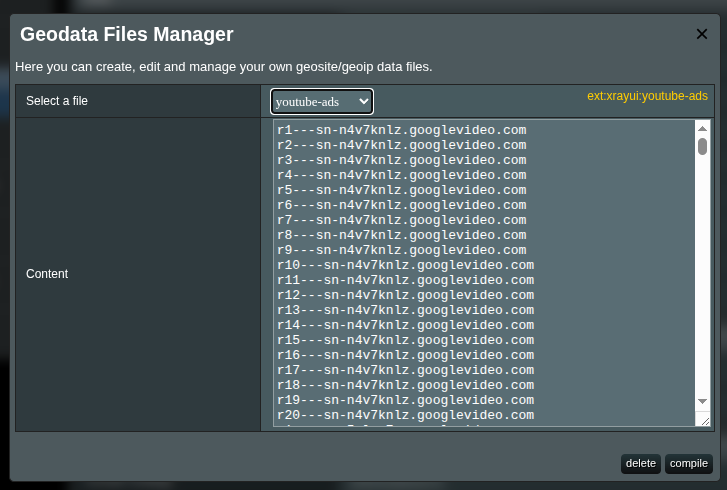
Community Geodata
What Are Community Geodata Files?
Xray ships with two main geodata databases:
| File | Location | Purpose |
|---|---|---|
geosite.dat | /opt/sbin/geosite.dat | Domain categories (geosite:google, geosite:netflix, etc.) |
geoip.dat | /opt/sbin/geoip.dat | IP ranges by country (geoip:cn, geoip:us, geoip:private, etc.) |
These files are maintained by community projects and updated regularly with new domains and IP ranges. XRAYUI downloads them from configurable URLs.
Sources
XRAYUI includes several well-known geodata sources. You can choose one from the Use well-known geodata dropdown in General Options → Geodata, or set custom URLs:
| Source | Description |
|---|---|
| Loyalsoldier | Popular general-purpose set (default) |
| RUNET Freedom | Focused on Russian-region bypasses |
| Nidelon | Russian blocks |
| DustinWin | Chinese-region rules |
| Chocolate4U | Iran-region rules |
Updating Community Files
Manual Update
In the Routing section, locate the GeoIP/GeoSite Metadata row and click update community files.

XRAYUI downloads the latest geosite.dat and geoip.dat from the configured URLs, replaces the existing files, recompiles any custom geodata, and restarts Xray if it's running.
The row also shows how many days have passed since the last update.
Automatic Update
Enable Auto-update geodata files in General Options → Geodata. A cron job runs every night at 03:00 to:
- Download fresh
geosite.datandgeoip.dat - Recompile all custom geodata files (including fetching any
url:sources) - Restart Xray if running
Tips
Auto-update is especially useful when your custom geodata files use url: sources — XRAYUI will fetch the latest domain lists automatically.
GitHub Proxy
If GitHub is blocked or rate-limited in your region, configure a proxy in General Options → General → Use GitHub Proxy. All geodata downloads will be routed through the selected proxy.
Custom Geodata Files
Overview
Sometimes you need to route traffic for domains that aren't covered by community databases, or you want to group specific domains into your own category. XRAYUI lets you create custom geosite files that compile into Xray's binary geodata format.
Custom geodata files are stored as plain text in /opt/share/xrayui/data/ and compiled into a single binary file at /opt/sbin/xrayui. You reference them in routing rules using the ext:xrayui:{tag} prefix.
For example, you can create a file tagged streaming with:
domain:netflix.com
domain:hulu.com
domain:disneyplus.com
Then use ext:xrayui:streaming in your routing rules to match all those domains at once.
Domain Syntax
Each line in a custom geodata file is a domain pattern. Supported formats:
| Prefix | Behavior | Example |
|---|---|---|
domain: | Domain and all subdomains (recommended) | domain:google.com → google.com, mail.google.com |
full: | Exact domain match only | full:github.com → only github.com |
regexp: | Regular expression | regexp:.*\.gov |
keyword: | Contains substring | keyword:bank → any domain containing "bank" |
url: | Fetch domains from an external URL | url:https://example.com/domains.lst |
| (plain text) | Treated as keyword match | example → any domain containing "example" |
Recommended prefix
Use domain: for most entries. It matches the domain itself and all subdomains, which is the most common use case.
The url: Prefix
The url: prefix is a powerful XRAYUI-specific feature. Instead of listing domains manually, you point to an online domain list. The DatBuilder fetches the content from the URL and includes it in the compiled geodata.
url:https://raw.githubusercontent.com/itdoginfo/allow-domains/main/Russia/inside-raw.lst
domain:custom-domain.com
You can use multiple url: entries in a single file. Each must be on its own line. You can also mix url: entries with regular domain patterns.
Dynamic lists
Combined with Auto-update geodata files, the url: prefix lets you build dynamic domain lists that stay current without manual intervention.
Managing Files via the UI
Opening the Manager
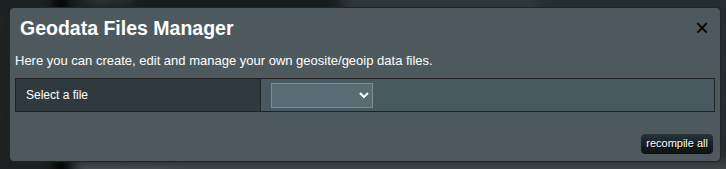
In the Routing section, click manage local files in the GeoIP/GeoSite Metadata row.
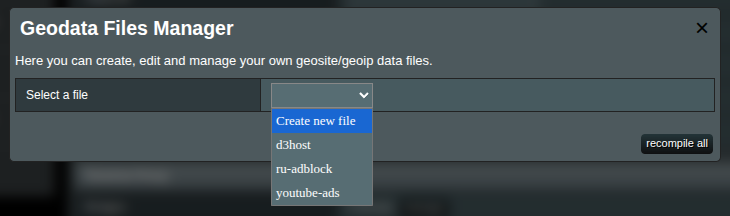
The Geodata Files Manager modal opens:
Creating a New File
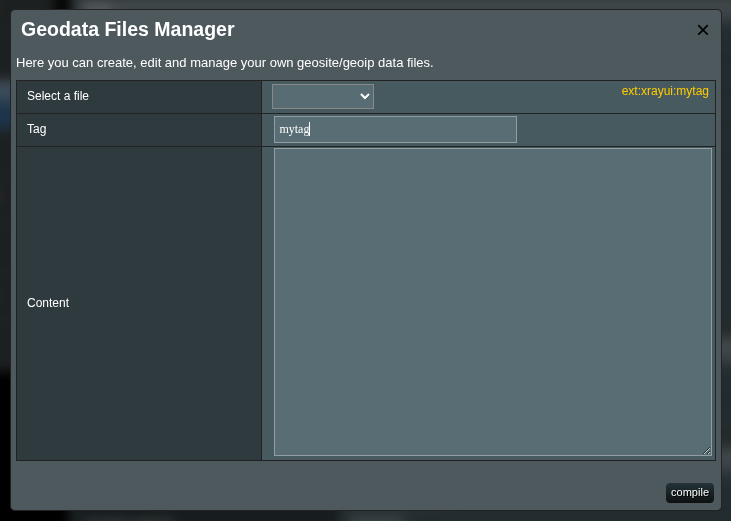
- Select Create new file from the dropdown
- Enter a Tag name — this becomes the identifier you use in routing rules
- Add domain patterns in the Content field (one per line)
- Click compile
Tag reference
After creating a file, note the yellow ext:xrayui:{tag} label shown next to the dropdown. Copy this value for use in your routing rules.
Editing an Existing File
- Select the file from the dropdown
- Modify the content in the textarea
- Click compile to save changes and recompile
Deleting a File
- Select the file from the dropdown
- Click delete
- Confirm the deletion
The file is removed from /opt/share/xrayui/data/, and all remaining files are recompiled.
Recompile All
Click recompile all (visible when no file is selected) to rebuild the compiled geodata from all files in /opt/share/xrayui/data/. This is useful when you have uploaded files directly to the router (see below).
Note
Every compile or recompile operation restarts Xray automatically if it's running, so the new geodata takes effect immediately.
Uploading Large Domain Lists
The web interface has a character limit of approximately 8000 characters per file due to Merlin firmware restrictions. For larger domain lists, upload files directly to the router.
Steps
Create a plain text file without an extension (e.g.,
mydomains), one domain pattern per lineUpload it to
/opt/share/xrayui/data/on the router (via SCP, SFTP, or SSH)scp mydomains admin@router:/opt/share/xrayui/data/Open the Geodata Files Manager and click recompile all
Your file will now appear in the dropdown, and you can use ext:xrayui:mydomains in routing rules.
Tips
Files uploaded directly have no size limitation. This is the recommended method for lists with hundreds or thousands of domains.
Using Geodata in Routing Rules
Once your geodata files are compiled, reference them in routing rules with the appropriate prefix.
Custom tags
ext:xrayui:streaming
ext:xrayui:mydomains
Community geosite categories
geosite:google
geosite:netflix
geosite:category-ads-all
Community geoip categories
geoip:cn
geoip:us
geoip:private
The rule editor provides autocomplete for both geosite: and ext:xrayui: tags:
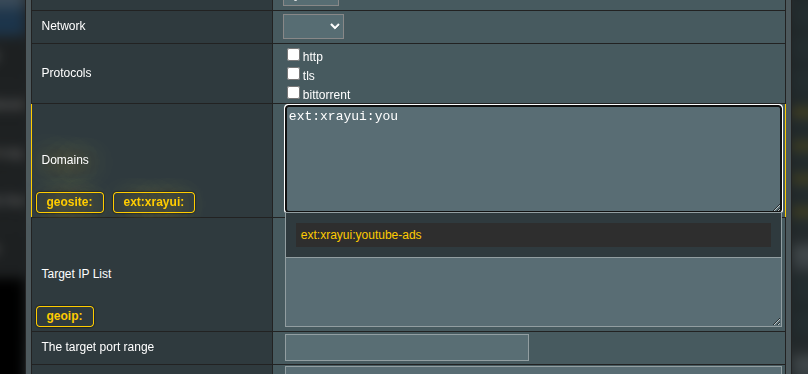
For full details on routing rules, see Routing Rules.
File Locations
| Path | Description |
|---|---|
/opt/sbin/geosite.dat | Community geosite database |
/opt/sbin/geoip.dat | Community geoip database |
/opt/sbin/xrayui | Compiled custom geodata (binary) |
/opt/share/xrayui/data/ | Custom geodata source files (plain text) |
/opt/share/xrayui/geodata_tags.json | Cached list of all available tags |
/opt/share/xrayui/v2dat | Tag inspection tool |
/opt/share/xrayui/xraydatbuilder | Compilation tool |
Configuration Reference
These settings are available in General Options → Geodata tab:
| Setting | Description | Default |
|---|---|---|
| GeoIP dat URL | Download URL for geoip.dat | Loyalsoldier release |
| GeoSite dat URL | Download URL for geosite.dat | Loyalsoldier release |
| Use well-known geodata | Quick-fill URLs from a trusted source | — |
| Auto-update geodata files | Enable nightly cron job at 03:00 | Off |
See General Options → Geodata for details.
Inspecting Geodata
Use the v2dat CLI tool to list tags, extract domain lists, and debug routing issues. See Inspect Geosite and GeoIP Databases for full usage instructions.
Quick examples:
# List all geosite categories
/opt/share/xrayui/v2dat unpack geosite -t /opt/sbin/geosite.dat

# View domains in a category
/opt/share/xrayui/v2dat unpack geosite -p -f netflix /opt/sbin/geosite.dat

# Verify your custom compilation
/opt/share/xrayui/v2dat unpack geosite -t /opt/sbin/xrayui
/opt/share/xrayui/v2dat unpack geosite -p -f streaming /opt/sbin/xrayui
Troubleshooting
Custom tag not found in routing rules
- Open the Geodata Files Manager and verify the file appears in the dropdown
- Click recompile all to force a fresh compilation
- Check that the compiled file exists:
ls -la /opt/sbin/xrayui - Verify the tag with v2dat:
/opt/share/xrayui/v2dat unpack geosite -t /opt/sbin/xrayui
Compilation fails
- Ensure the file content has valid syntax (one pattern per line)
- Check for empty files — the compiler requires at least one valid entry
- Look at XRAYUI logs for error details (enable debug logs in General Options if needed)
url: sources not updating
- Verify the URLs are accessible from the router:
curl -I <url>via SSH - If GitHub URLs are used, ensure the GitHub proxy is configured when GitHub is blocked
- Enable Auto-update geodata files to refresh
url:sources automatically
Community geodata update fails
- Check internet connectivity from the router
- Verify the download URLs in General Options → Geodata
- If GitHub is blocked, configure Use GitHub Proxy in General Options → General
- Try updating manually via SSH:
curl -L <geosite_url> -o /opt/sbin/geosite.dat