Core
All changes on this tab require a service restart (except the interface language).
Controls
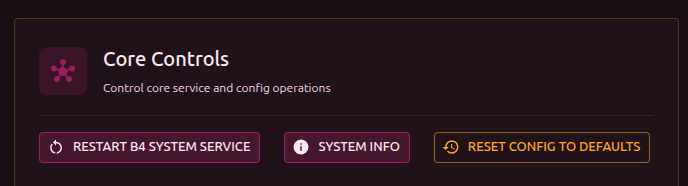
Buttons at the top of the settings:
- Restart service - restart b4 (expected downtime: 5-10 seconds)
When the configuration is reset, these are preserved: domains, GeoSite/GeoIP categories, and test settings. Everything else (network, DPI bypass, protocols, logging) is reset to defaults.
Queue and packet processing
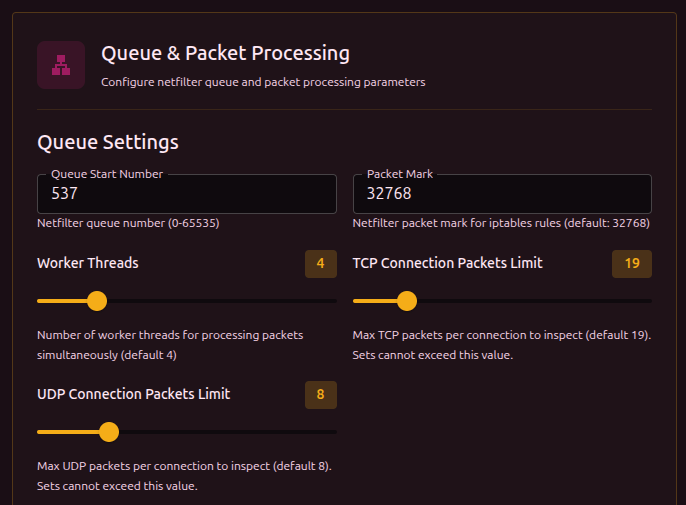
Settings for the packet processing core over netfilter.
| Parameter | Description | Range | Default |
|---|---|---|---|
| Starting queue number | NFQUEUE number. Change if other programs use the same numbers | 0-65535 | 537 |
| Packet mark | netfilter mark for iptables/nftables rules. b4 uses it to mark processed packets | - | 32768 |
| Worker threads | Number of parallel workers. More threads = higher throughput on multi-core systems | 1-16 | 4 |
| TCP per-connection packet limit | How many TCP packets per connection to analyze. Sets cannot exceed this value | 1-100 | 19 |
| UDP per-connection packet limit | How many UDP packets per connection to analyze. Sets cannot exceed this value | 1-30 | 8 |
These limits are a global ceiling. Each set can define its own limit, but not above the global one. A higher value gives b4 more time to analyze but increases load.
Features
Protocols
| Parameter | Description | Default |
|---|---|---|
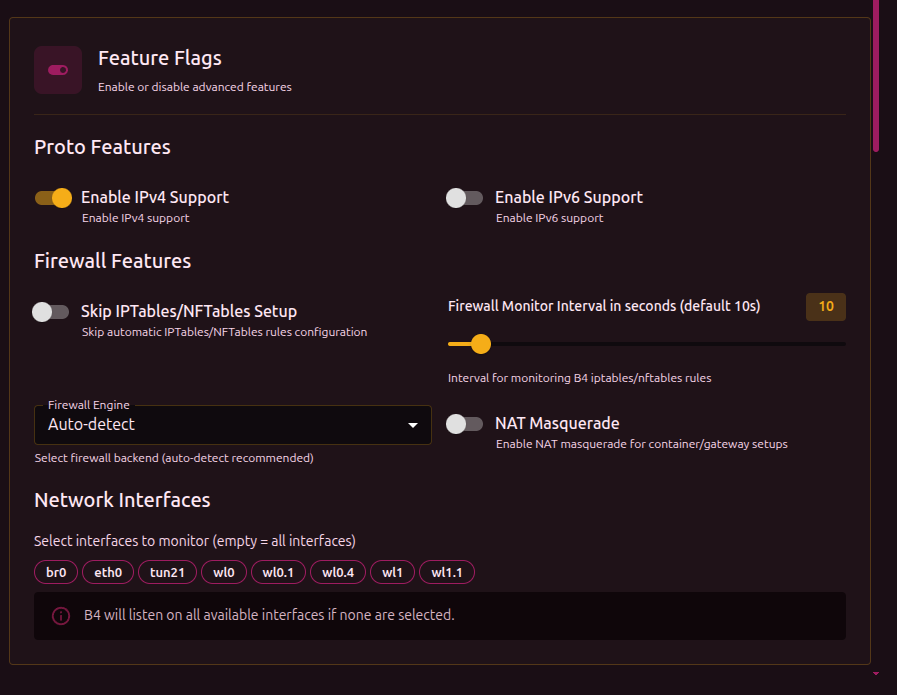
| IPv4 support | Process IPv4 traffic | On |
| IPv6 support | Process IPv6 traffic | Off |
Firewall
| Parameter | Description | Default |
|---|---|---|
| Skip IPTables/NFTables setup | b4 will not create firewall rules. Use this if you manage rules manually | Off |
| Firewall monitor interval | How often to check and restore rules (seconds). If external programs delete rules, b4 will restore them | 10 |
| Firewall engine | Which backend to use for rules | Auto-detect |
| NAT Masquerade | Enable NAT masquerading. Needed for containers and gateways where b4 forwards traffic | Off |
| Masquerade interface | Interface to apply masquerading on. Appears when NAT Masquerade is enabled | All |
Setting this to 0 turns off rule monitoring completely. If an external program or script removes b4's rules, they will not be restored.
Firewall engine options:
| Value | Description |
|---|---|
| Auto-detect | b4 picks the available backend (recommended) |
| nftables | Use nftables |
| iptables | Use iptables |
| iptables-legacy | Use iptables-legacy (for older systems) |
Network interfaces
Pick interfaces to monitor. Interfaces are shown as clickable tags - click to enable/disable.
If no interface is selected, b4 listens on every available one.
Logging
| Parameter | Description | Default |
|---|---|---|
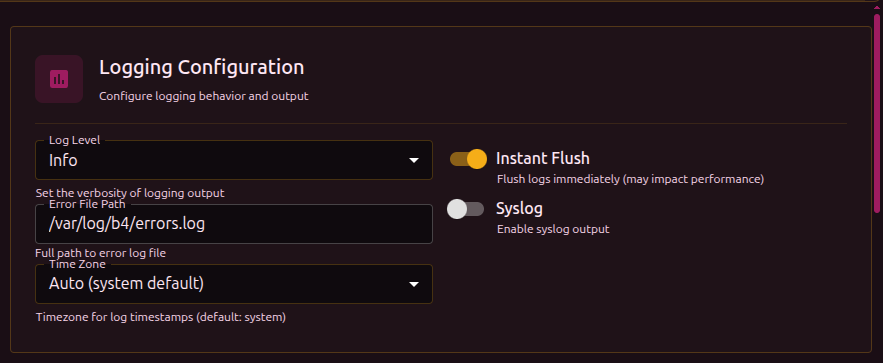
| Log level | Log verbosity | INFO |
| Error file path | File to write errors to | /var/log/b4/errors.log |
| Timezone | Timezone for timestamps | System (auto) |
| Immediate flush | Flush the buffer after every write. May affect performance | On |
| Syslog | Also send logs to the system syslog | Off |
Log levels:
| Level | What is shown |
|---|---|
| Error | Only errors |
| Info | Errors + main events |
| Trace | Info + packet processing details |
| Debug | Everything, including debug info |
At the Error level, the Logs and Connections sections in the web interface will not show data - they read from the log stream, which is almost empty at this level.
b4 does not keep a persistent log file - everything goes to stdout/stderr (and is captured by the web interface through a WebSocket). Only critical errors and crashes are written to errors.log.
For diagnosing issues use Trace or Debug. For normal operation Info is enough.
Web server
Settings for the b4 web interface.
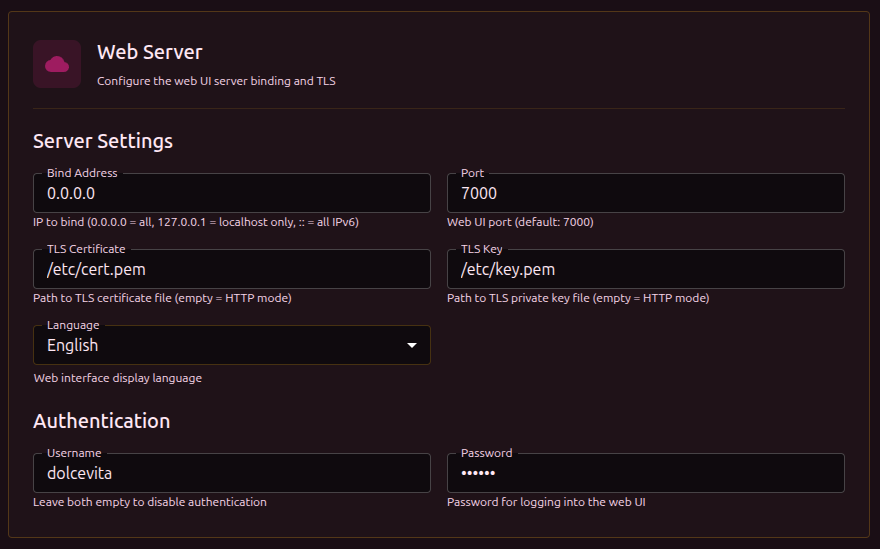
| Parameter | Description | Default |
|---|---|---|
| Bind address | IP to listen on. 0.0.0.0 = all interfaces, 127.0.0.1 = localhost only, :: = all IPv6 | 0.0.0.0 |
| Port | Web interface port | 7000 |
| TLS Certificate | Path to a .crt or .pem certificate file (empty = HTTP) | - |
| TLS Key | Path to a .key or .pem key file (empty = HTTP) | - |
| Language | Interface language: English / Русский | English |
Authentication
| Parameter | Description | Default |
|---|---|---|
| Username | Login for the web interface | - |
| Password | Password | - |
Authentication only applies when both fields are filled. If only the username or only the password is set, authentication stays off.
If authentication is enabled but TLS is not configured, the username and password travel over unencrypted HTTP. Configure TLS certificates for secure transport. See the Security section.
SOCKS5 proxy
A built-in SOCKS5 proxy. Applications can route traffic through it - it is processed by b4 with the configured sets applied.
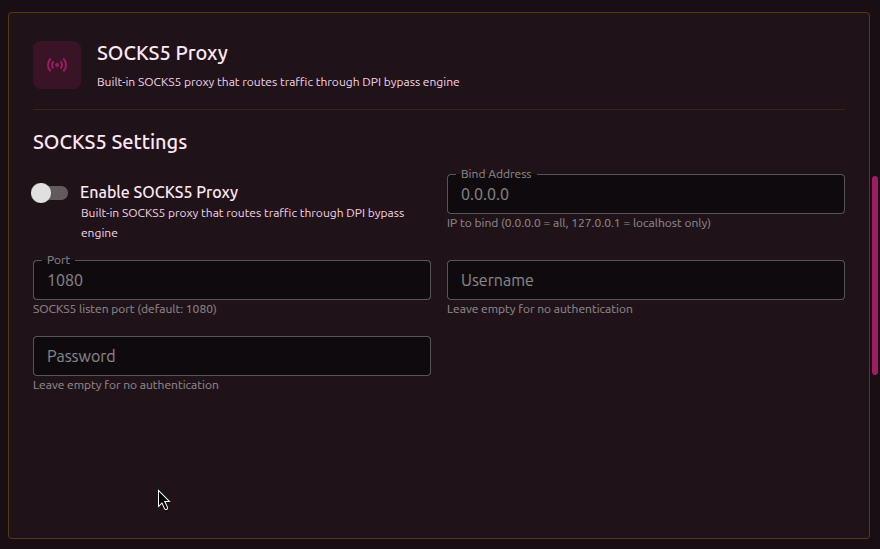
| Parameter | Description | Default |
|---|---|---|
| Enable | Start the SOCKS5 server | Off |
| Bind address | IP to listen on. 0.0.0.0 = all, 127.0.0.1 = localhost only | 0.0.0.0 |
| Port | Proxy port | 1080 |
| Username | Login for SOCKS5 authentication (empty = no authentication) | - |
| Password | Password for SOCKS5 authentication (empty = no authentication) | - |
Every field except "Enable" becomes available only after the proxy is enabled.
Changes to SOCKS5 settings require a service restart.
MTProto proxy
A built-in Telegram MTProto proxy with fake-TLS obfuscation. Telegram traffic is wrapped in a TLS connection, masquerading as regular HTTPS. Detailed setup in the MTProto Proxy section.
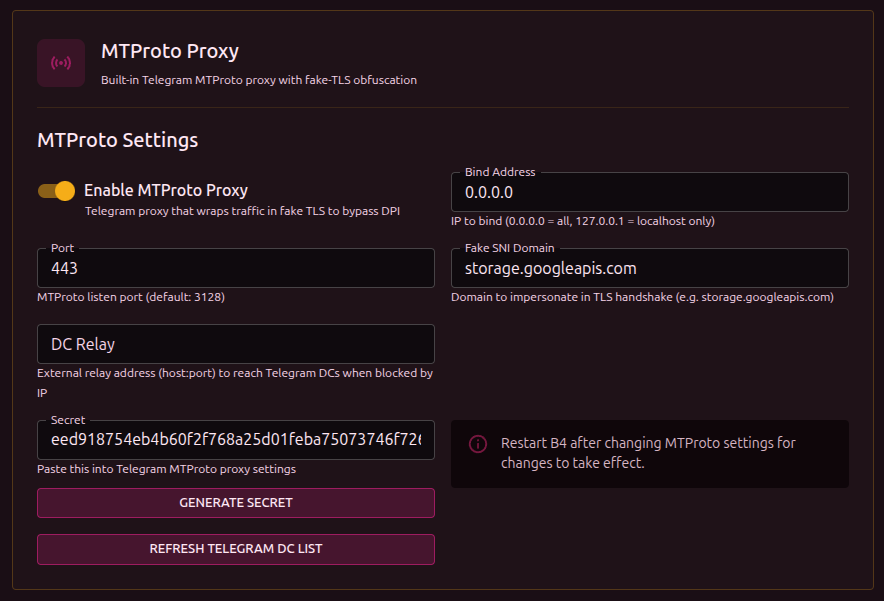
| Parameter | Description | Default |
|---|---|---|
| Enable | Start the MTProto server | Off |
| Bind address | IP to listen on | 0.0.0.0 |
| Port | Proxy port | 3128 |
| Fake SNI domain | The domain visible in the TLS handshake. The DPI sees this domain instead of Telegram | storage.googleapis.com |
| DC Relay | External relay address (host:port) for reaching Telegram DCs when they are IP-blocked | - |
| Secret | Secret for the Telegram client to connect. Paste it into the Telegram proxy settings | - |
The Generate Secret button creates a secret based on the current Fake SNI domain.
DC Relay is needed when b4 is installed on a router inside a country with blocking, and Telegram server IPs are blocked. A VPS outside the blocking area is used as the relay.
Changes to MTProto settings require a service restart.
Global MSS Clamping
Limits TCP Maximum Segment Size on SYN/SYN-ACK packets for port 443 traffic. A smaller MSS leads to natural fragmentation - the DPI cannot reassemble a fragmented ClientHello.
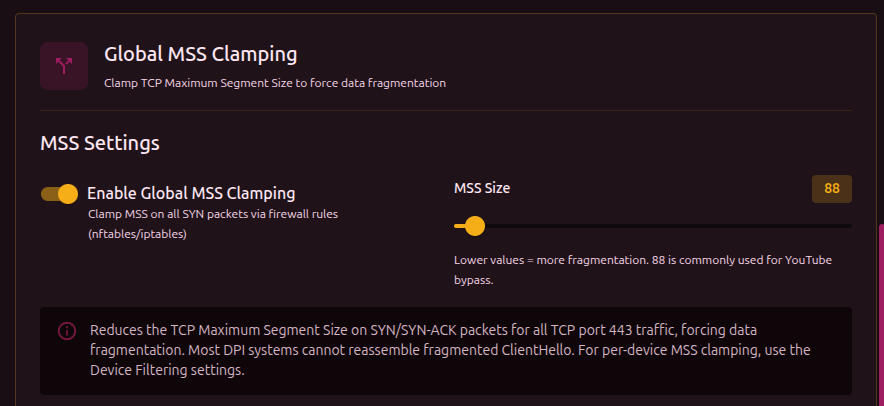
| Parameter | Description | Range | Default |
|---|---|---|---|
| Enable | Turn on global MSS Clamping | - | Off |
| MSS size | MSS size in bytes. Lower = more fragmentation | 10-1460 | 88 |
Global MSS Clamping applies to all port 443 traffic. To limit MSS only for specific devices (for example, a TV running YouTube), configure MSS in the MSS column of the device table below. Per-device MSS works independently of the global setting.
Device filtering
Limits b4 to traffic from specific devices on the network (by MAC address). Useful when bypass is not needed for every device.
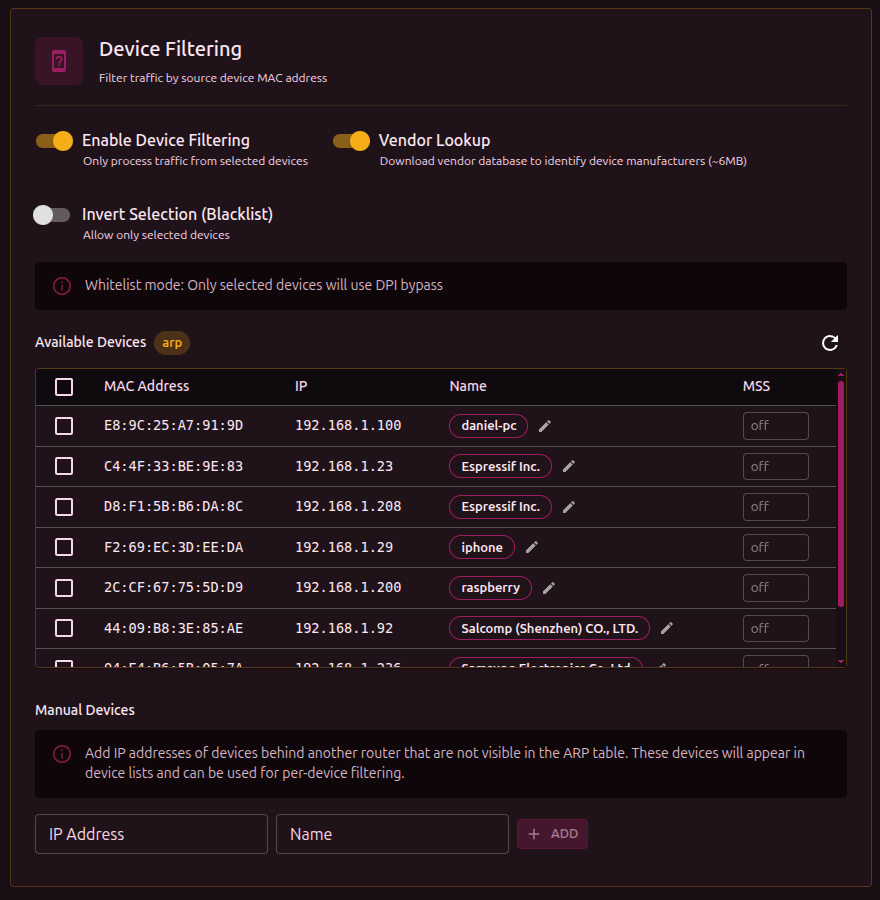
| Parameter | Description | Default |
|---|---|---|
| Enable | Turn on device filtering | Off |
| Vendor detection | Download the vendor database to identify manufacturer by MAC (~6 MB) | Off |
| Invert selection | Toggle between allow list and deny list | Off |
- Allow list (default) - DPI bypass works only for the selected devices
- Deny list (invert selection) - selected devices are excluded from DPI bypass
Device table
When filtering is enabled, a table of discovered devices appears:
| Column | Description |
|---|---|
| Select | Checkbox to include/exclude the device |
| MAC | MAC address |
| IP | Current IP address |
| Name | Device alias (editable through the edit icon) or vendor |
| MSS | Per-device MSS Clamping (10-1460, empty = off) |
The Refresh button reloads the device list from the ARP table.
MSS Clamping can be set per device - for example, lowering the MSS only for a TV running YouTube without affecting other devices.